
How to Report a Suspicious Email to the Security Team
Purpose
This guide explains how to report a suspicious or potentially malicious email to the Security Operations Center (SOC) for investigation.
Reporting suspicious emails helps protect the organization from phishing attacks, malware, credential theft, business email compromise (BEC), and other email-based threats.
Before You Begin
If you receive a suspicious email:
- Do not click any links.
- Do not open any attachments.
- Do not reply to the sender.
- Do not forward the email normally.
- Report the email to the Security Team using the steps below.
Why Forward as an Attachment?
A normal forwarded email removes valuable technical information that security analysts need for investigation.
Forwarding the email as an attachment preserves:
- Original message headers
- Sender information
- Authentication results (SPF, DKIM, DMARC)
- Links and attachments
- Routing information
This allows the Security Team to perform a complete analysis.
Outlook Desktop (Windows)
Step 1
Open the suspicious email.
Step 2
Select the email in your inbox.
Step 3
Click More Actions (...) or Home on the ribbon.
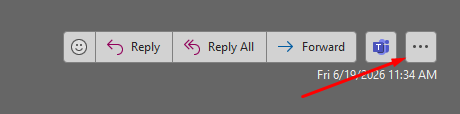
Step 4
Select Forward as Attachment.
Step 5
Create a new email addressed to:
soc@intricatesecurity.com
Step 6
Include a brief description such as:
- "Unexpected invoice."
- "Suspicious login request."
- "Potential phishing email."
- "Not sure if legitimate."
Step 7
Send the email.
Outlook on the Web (OWA)
Step 1
Open Outlook on the Web.
Step 2
Locate the suspicious email.
Step 3
Select the message.
Step 4
Click the More Actions (...) menu.
Step 5
Choose Forward as Attachment.
Step 6
Address the email to:
phishing@[CLIENTDOMAIN.COM]
Step 7
Add any relevant notes and send the email.
Mobile Devices
If using Outlook Mobile or another mobile mail application:
- Do not click any links or attachments.
- Take a screenshot if helpful.
- Forward the email to:
phishing@[CLIENTDOMAIN.COM]
- Include a note indicating that the email was reported from a mobile device.
The Security Team may request additional information if needed.
What Happens After Reporting?
The Security Team will:
- Review the email for phishing indicators.
- Analyze links and attachments.
- Determine whether the message is malicious.
- Identify other recipients within the organization.
- Take remediation actions if necessary.
- Contact affected users if additional action is required.
Common Signs of Phishing
Be cautious of emails that:
- Request passwords or MFA approvals.
- Create urgency or pressure.
- Claim your account will be disabled.
- Ask for wire transfers or gift cards.
- Contain unexpected attachments.
- Include links to unfamiliar websites.
- Appear to come from executives or vendors but contain unusual requests.
- Have spelling, grammar, or formatting issues.
If You Clicked a Link or Opened an Attachment
Immediately contact the Security Team and provide:
- Your name
- The date and time of the incident
- What action was taken
- Any information entered into the website
Prompt reporting helps reduce the impact of potential security incidents.
Contact Information
For questions or assistance, contact:
Security Operations Center (SOC)
Email: soc@intricatesecurity.com